# App Store and Google Play Preview Videos: Sizes, Length and Rules (2026)
An **App Store app preview** must be **15 to 30 seconds** long, at most 30 fps and 500 MB, in H.264 (.mov, .m4v, .mp4) or ProRes 422 HQ, at the exact resolution for each device class: **886x1920** portrait for current iPhones, **1200x1600** for iPads, **1920x1080** for Mac and Apple TV. It must show only footage from inside the app. A **Google Play preview video** is a YouTube link with no length limit, but only the first 30 seconds autoplay, muted.
Every number below comes from Apple's [App Store Connect Help](https://www.developer.apple.com/help/app-store-connect/reference/app-information/app-preview-specifications), Apple's [app preview guidelines](https://developer.apple.com/support/app-previews/) or Google's [Play Console Help](https://support.google.com/googleplay/android-developer/answer/9866151?hl=en), checked on 27 October 2026. Store rules change, so check the linked page before you submit.
## App Store app preview specs at a glance
| Spec | Requirement |
|---|---|
| Length | 15 s minimum, 30 s maximum |
| Number | Up to 3 per device size and language |
| Formats | .mov, .m4v, .mp4 (H.264); .mov (ProRes 422 HQ only) |
| Frame rate | 30 fps maximum |
| File size | 500 MB maximum |
| Audio (H.264) | Stereo, 256 kbps AAC, 44.1 or 48 kHz |
| Audio (ProRes) | PCM (16, 24 or 32-bit) or 256 kbps AAC |
| Playback | Autoplays muted on the product page and in search results |
Source: [App Store Connect Help](https://www.developer.apple.com/help/app-store-connect/reference/app-information/app-preview-specifications) and [Apple's app preview guidelines](https://developer.apple.com/support/app-previews/).
## What resolution does each device need?
Previews are device-specific. Apple lists one row per display class, and smaller classes fall back to the larger ones if you don't upload their own.
| Device class | Portrait | Landscape |
|---|---|---|
| iPhone with Dynamic Island or Face ID | 886 x 1920 | 1920 x 886 |
| iPhone with Home button, large (8 Plus, 7 Plus…) | 1080 x 1920 | 1920 x 1080 |
| iPhone with Home button, medium (SE 2nd/3rd gen, 8…) | 750 x 1334 | 1334 x 750 |
| iPad 13", 11" and 10.5" | 1200 x 1600 | 1600 x 1200 |
| iPad 12.9" (2nd gen) | 1200 x 1600 or 900 x 1200 | 1600 x 1200 or 1200 x 900 |
| iPad 9.7" | 900 x 1200 | 1200 x 900 |
| Mac | — | 1920 x 1080 |
| Apple TV | — | 1920 x 1080 |
| Apple Vision Pro | — | 3840 x 2160 |
Note that the iPhone size is **886x1920**, not 1080x1920. A standard vertical export for Reels or Shorts won't upload as an iPhone preview without being resized or cropped to that frame.
## What does Apple reject in app previews?
Apple's [app preview guidelines](https://developer.apple.com/support/app-previews/) are stricter than most people expect:
- **App footage only.** "App previews must show only content within the app itself. Don't film people interacting with a device, such as an over-the-shoulder angle or fingers tapping the screen." No device frames around the screen, no hands.
- **Touch hints are fine as graphics.** You "may add graphic elements, such as touch hotspots" to show where someone taps.
- **Native resolution.** Apple recommends "capturing the native UI resolution rather than zooming in on the view."
- **Plain transitions.** Transitions shouldn't imply features the app doesn't have; Apple suggests "dissolves and fades."
- **No prices or dates.** Don't include prices (they vary by region) or timely references like "new for spring."
- **Disclose paywalls.** If you show features behind an in-app purchase, a subscription or a login, you must say so, in the footage or on the end frame.
- **Licensed music only.** You need the rights to any music, film or brand you show, in every territory.
- **All ages.** No violence, adult themes or profanity.
That rules out most "cinematic" product video styles for the App Store itself: 3D camera moves, phone mockups and spinning devices don't belong in the preview slot.
Apple's rules also reach beyond the store. Its [marketing guidelines for App Store apps](https://developer.apple.com/app-store/marketing/guidelines) ask you to use Apple-provided product bezels "as is", and don't allow "animating, flipping, or spinning" them or "rendering in 3D or creating any simulation of an Apple product". In video, you may show the whole device first, then pan and zoom to your app. So if you promote an iOS app on your site or social, show iPhones straight on, or use the app screen without a device.
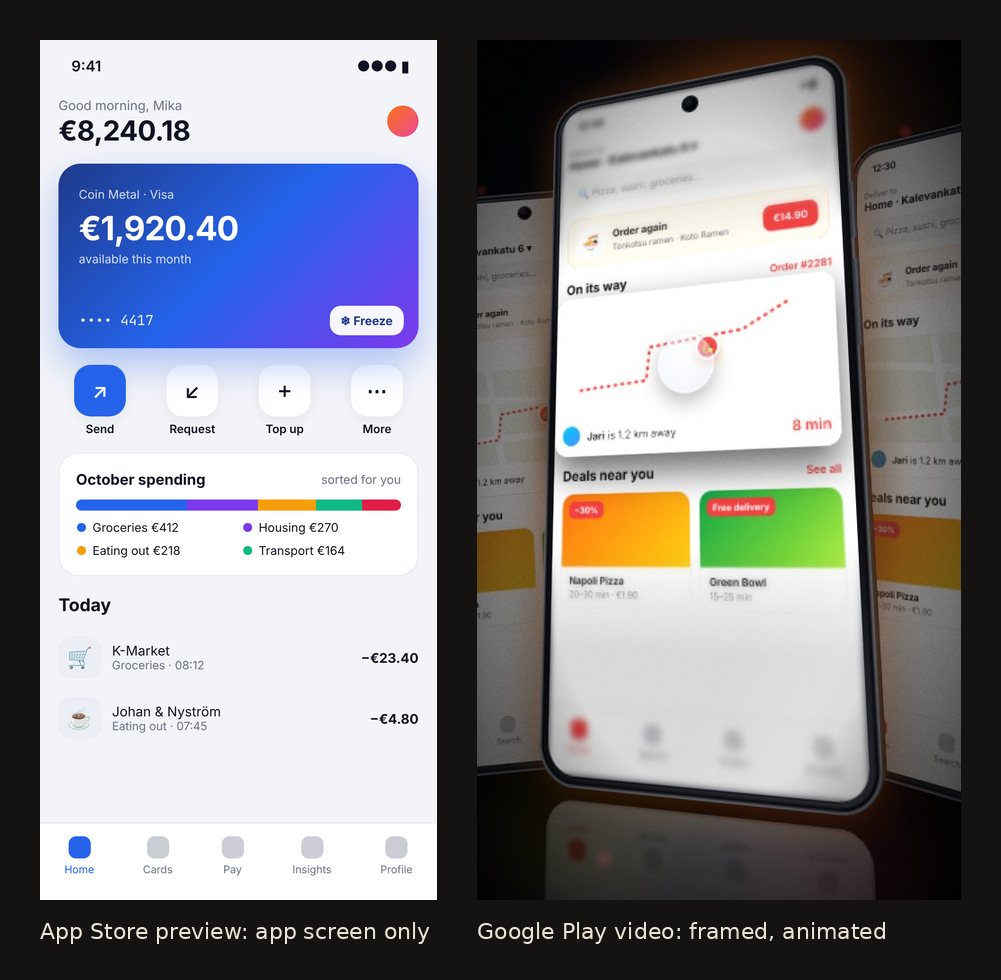
Left: what Apple wants in an app preview, the app's own screen at native size. Right: a framed, animated cut of a sample Android app, which is fine for a Google Play video on YouTube. Both apps are Lumora sample templates.
## How to make the App Store preview
1. **Record the app itself** on a device or in Xcode's Simulator, at native resolution, with realistic data in it.
2. **Cut to 15–30 seconds.** Show the core action in the first few seconds; the preview autoplays muted in search results, where it competes with other apps.
3. **Add short text overlays.** Apple says previews play muted by default, so "consider using copy to add additional context," and keep text on screen long enough to read.
4. **Pick the poster frame.** People who turned off autoplay only see the poster frame. Changing it after approval means submitting a new preview.
5. **Export at the exact size** for each device class, 30 fps or less, with a stereo audio track.
How long to make it, and how that compares with other channels, is in [how long a demo video should be](/blog/how-long-should-a-demo-video-be).
## Google Play preview video requirements
Google Play doesn't host video. You paste a YouTube URL into the preview video field, and the [Play Console Help](https://support.google.com/googleplay/android-developer/answer/9866151?hl=en) sets these rules:
| Requirement | Detail |
|---|---|
| URL | One YouTube video URL; not a playlist or channel, no timecodes or extra parameters |
| Privacy | Public or unlisted, not private |
| Ads | Disabled on the video |
| Age | Not age-restricted |
| Embedding | Must be embeddable |
| Autoplay | May autoplay inline, muted, for up to the first 30 seconds |
Google's recommendations (not requirements):
- Show the app "as early as possible within the first 10 seconds."
- Make at least 80% of the video representative of the real experience.
- Add captions for people who are deaf or hard of hearing.
Because the video lives on YouTube, the YouTube specs apply to the upload: H.264 MP4 at the frame rate you recorded. Our [demo video sizes cheat sheet](/blog/demo-video-sizes-specs) has those numbers. Landscape or portrait both work; a vertical video fills more of a phone screen.
A 15-second vertical promo for a sample Android food-delivery app, made in Lumora from one screenshot. Fine for a Google Play video, Shorts and Reels; not allowed as an App Store preview, because of the device frame and 3D camera.
## App Store vs Google Play: the differences that matter
| | App Store app preview | Google Play preview video |
|---|---|---|
| Hosted by | Apple (you upload the file) | YouTube (you paste a link) |
| Length | 15–30 s, enforced | No limit; first 30 s autoplay |
| Resolution | Exact per device class | Anything YouTube accepts |
| How many | Up to 3 per device size and language | 1 |
| Device frames, hands, 3D moves | Not allowed | Allowed |
| Plays | Autoplay, muted | May autoplay, muted |
The practical takeaway: make two cuts. A strict, flat, native-resolution cut for Apple, and a more produced cut for YouTube that serves Google Play, your landing page and social at once.
## Where Lumora fits (and where it doesn't)
We make [Lumora](/), so here's the honest version. Lumora is built for the produced cut: phone frames, camera moves, callouts and music from screenshots or recordings, exported as 9:16, 16:9 and 1:1. That's a good fit for an Android app's Google Play video, your website, Shorts and Reels. For an iOS app, keep Apple's marketing guidelines in mind: set the device to none and use a flat look such as Studio, so the app screen is shown without a simulated iPhone.
It's the wrong tool for the App Store preview itself. Apple wants native app footage without frames or 3D motion, at 886x1920 for current iPhones, and Lumora's vertical export is 1080x1920. For that slot, record in the Simulator or on the device and trim it in any editor.