GitHub README GIF: How to Make a Demo GIF That Stays Small
How to add a demo GIF to a GitHub README that loads fast: the 10 MB limit, the sizes we measured at each width and frame rate, ffmpeg commands, MP4 as an alternative, and light/dark versions.
A good GitHub README demo GIF is 5 to 8 seconds long, 640 to 800 px wide, at 10 to 12 frames per second, and under about 5 MB. GitHub accepts images and GIFs up to 10 MB as uploads, but a GIF that size makes the first screen of your README slow to load. GIFs get big fast: in our test, a 7.5-second clip with a moving camera needed 640 px at 10 fps to get under 5 MB, while the same clip as an MP4 was 0.27 MB. So build the GIF with ffmpeg's palette filters, keep the motion small, and for anything longer or with sound, upload an MP4: GitHub plays videos in READMEs too.
Below are the limits, the file sizes we measured for one clip at different settings, and copy-paste commands.
What are GitHub's limits for GIFs and videos?
| What | Limit | Source |
|---|---|---|
| Images and GIFs (uploaded) | 10 MB | GitHub Docs |
| Videos, free plan | 10 MB | GitHub Docs |
| Videos, paid plan | 100 MB | GitHub Docs |
| Video formats | MP4, MOV, WebM (H.264 recommended) | GitHub Docs |
| README content | Anything beyond 500 KiB of text is truncated | GitHub Docs |
| File added via the browser | 25 MiB | GitHub Docs |
The 10 MB is a ceiling, not a target. A README is often the first thing a visitor sees, and the GIF loads before they decide whether to scroll.
How big is a README GIF at different settings? What we measured
We exported a 7.5-second clip of a sample developer tool from Lumora at 1920x1080, with a slow camera move and one callout, and encoded it with ffmpeg at different widths and frame rates using the palette method below. We made two versions: one on a plain dark background, and one on a photo wallpaper (Lumora's Studio look).
| Width | Frame rate | Plain background | Photo wallpaper |
|---|---|---|---|
| 1280 px | 15 fps | 21.3 MB | 29.9 MB |
| 960 px | 15 fps | 12.9 MB | 17.7 MB |
| 960 px | 10 fps | 9.3 MB | 12.4 MB |
| 800 px | 12 fps | 8.4 MB | 10.8 MB |
| 800 px | 10 fps | 7.2 MB | 9.2 MB |
| 640 px | 10 fps | 4.8 MB | 6.0 MB |
| MP4 (H.264), 960 px | 30 fps | 0.27 MB | 0.30 MB |
Four things stand out:
- Only small, slow GIFs fit. With a moving camera, only 640 px at 10 fps came in under 5 MB. Anything 800 px or wider was 7 MB or more.
- Width and frame rate both count. Dropping from 960 px at 15 fps to 640 px at 10 fps cut the file by almost two thirds. UI motion reads fine at 10 fps.
- Busy backgrounds cost 25 to 40% more. The wallpaper version was 25 to 40% bigger at every setting, because GIF's 256 colours struggle with photos and gradients.
- MP4 is in another league. The same clip was 0.27 MB as an MP4, about 18 times smaller than the smallest GIF.
A camera that moves changes every pixel in every frame, which is the worst case for GIF. A screen where only a small part changes (a terminal printing lines, a button being clicked) compresses much better, because the encoder can store just the changed rectangle. For a README GIF, a still camera beats a cinematic one.
How to make the GIF with ffmpeg
GIFs only have 256 colours, so the quality comes from the palette. Generate a palette from your clip, then use it:
# 960 px wide, 12 fps, palette built from this clip
ffmpeg -i demo.mp4 -vf "fps=12,scale=960:-1:flags=lanczos,split[a][b];[a]palettegen[p];[b][p]paletteuse" demo.gif

# Smaller: 800 px, 10 fps, and limit the palette to the colours that change
ffmpeg -i demo.mp4 -vf "fps=10,scale=800:-1:flags=lanczos,split[a][b];[a]palettegen=stats_mode=diff[p];[b][p]paletteuse=dither=bayer:bayer_scale=5:diff_mode=rectangle" demo-small.gif
stats_mode=diff builds the palette from the parts that differ from the previous frame, and diff_mode=rectangle processes only the smallest rectangle that changed. On our moving-camera clip they saved only 1 to 25%, because nearly everything changed every frame; they help most when large parts of the screen stay still. The options are documented in the ffmpeg filters reference.
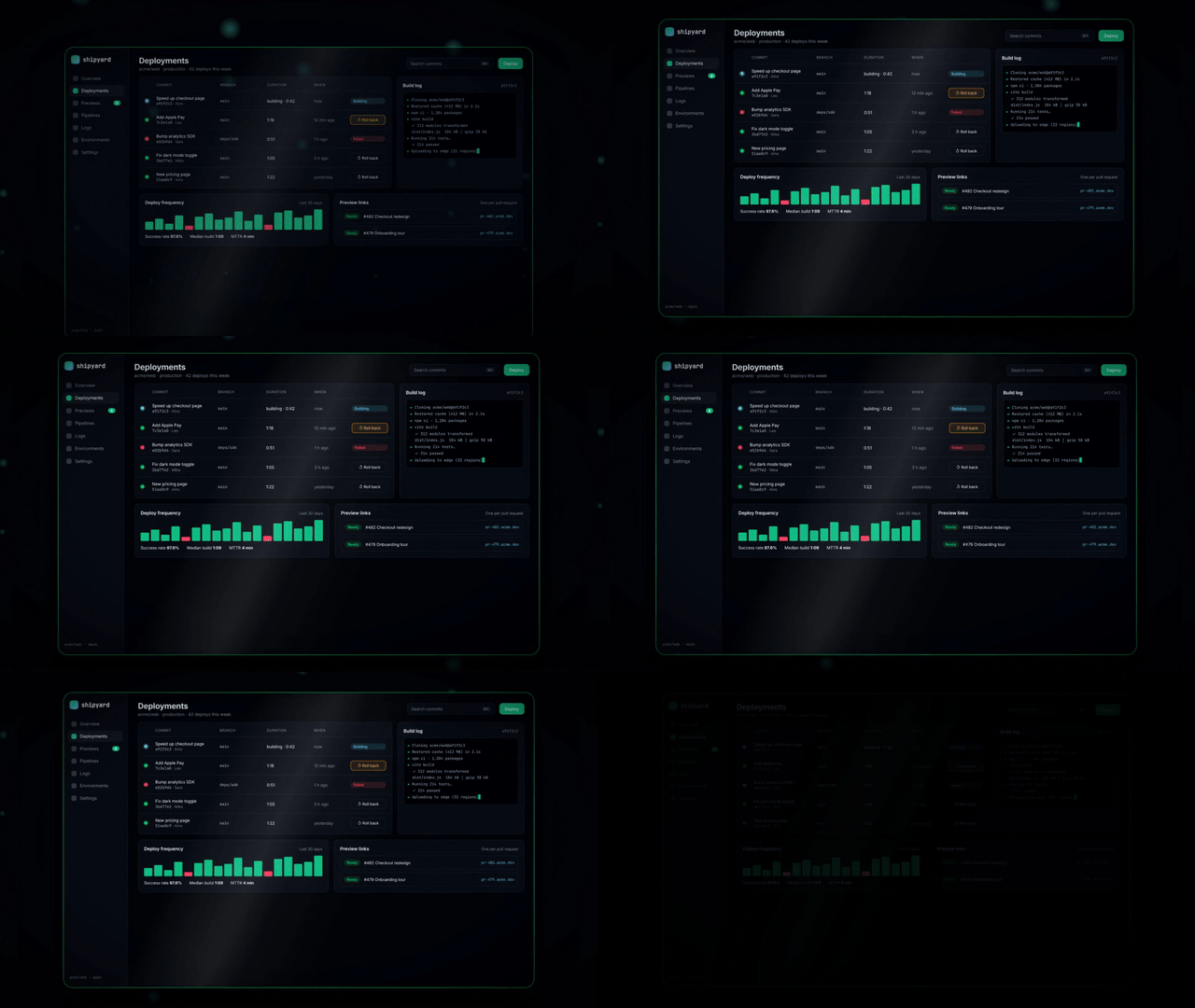
GIF or MP4 in a README?
Since May 2021, GitHub has supported video uploads everywhere you write Markdown, including repository Markdown files such as READMEs. Drag an MP4 into the editor and GitHub hosts it and inserts the link.
| GIF | MP4 upload | |
|---|---|---|
| Plays automatically and loops | Yes | No; viewers press play |
| Sound | No | Yes |
| Size for the same clip | Large | Much smaller |
| Length that works | 5–10 s | Up to the 10 MB / 100 MB limit |
Use a GIF for the one thing that should move the moment someone opens the repo. Use an MP4 for a longer walkthrough, a talk-through with sound, or anything over about 15 seconds. Many projects do both: a short GIF at the top, a longer video further down.
Where should the GIF live?
- In the repository, under
docs/or.github/, and linked with a relative path. GitHub transforms relative image paths so they work on every branch. The catch: every version you commit stays in the git history forever, so re-recording a 5 MB GIF every release makes every clone heavier. - As an upload, by dragging it into an issue or the README editor. GitHub hosts the file and your history stays small.
For a GIF you update often, upload it. For one that rarely changes, keeping it in the repo is fine.
Light and dark mode versions
GitHub's own writing quickstart shows how to swap images by theme with a <picture> element:
<picture>
  <source media="(prefers-color-scheme: dark)" srcset="docs/demo-dark.gif">
  <source media="(prefers-color-scheme: light)" srcset="docs/demo-light.gif">
  <img alt="Demo: deploying a branch and rolling it back in two clicks" src="docs/demo-light.gif">
</picture>
Only do this if your product has both themes and the GIF looks wrong on one background. Two GIFs means twice the work every time the UI changes. Always write real alt text: it's what screen readers and search engines get.
What should a README GIF show?
- The one command or click that makes people get it. The install-and-run moment for a CLI, the core action for an app.
- Real output. If it's a CLI, show the real command and the real result, not a mock.
- Big enough text. A GIF scaled down to 800 px makes 13 px UI text unreadable. Zoom into the part that matters instead of showing the whole screen.
- A clean loop. End on a frame that leads back into the first, or hold the final state for a second so the restart doesn't feel like a glitch.
Making README GIFs with Lumora
Lumora (ours) exports GIF, MP4 and WebM from the same project, and the Studio look keeps the screen flat on a soft wallpaper with zooms that do the moving, which compresses better than full 3D camera moves. If your team ships with Claude Code or Codex, the Lumora MCP server can render a fresh README GIF and a changelog clip as part of each release. For the tighter settings in the table above, take Lumora's MP4 and run the ffmpeg command on it.
FAQ
What is the maximum GIF size on GitHub?
GitHub's docs list 10 MB for images and GIFs uploaded as attachments. A GIF committed to the repository can be bigger, but anything over a few MB loads slowly in a README, so aim for 5 MB or less.
How do I make a GIF smaller for a README?
Lower three things in this order: frame rate (10 fps is plenty for UI), width (640 to 800 px), and length (5 to 8 seconds). Use ffmpeg's palettegen and paletteuse filters for clean colours. In our test, going from 960 px at 15 fps to 640 px at 10 fps cut a 7.5-second clip from 12.9 MB to 4.8 MB.
Can I put a video in a GitHub README instead of a GIF?
Yes. Since May 2021, GitHub supports video uploads everywhere you write Markdown, including repository Markdown files such as READMEs. Videos are limited to 10 MB on free plans and 100 MB on paid plans. A video doesn't autoplay or loop like a GIF, but it's much smaller and can have sound.
Should the README GIF live in the repository?
It can. GitHub turns relative image paths into working links on every branch. Keep media in a folder such as docs/ or .github/, and remember that every version of the GIF stays in the git history, so don't re-commit a 10 MB file every week.
How do I show a different image in dark mode on GitHub?
Use a picture element with a source for media="(prefers-color-scheme: dark)" and an img fallback. GitHub documents this pattern in its writing quickstart.