Device Mockup Videos: Put Your App in a Phone, Laptop or App Window (and What Apple and Google Allow)
How to make a device mockup video for an app: which frame fits which product, how to animate it, and the Apple and Google rules that limit device frames in app marketing and store listings.
A device mockup video puts your app's screen inside a frame, such as a phone, a laptop, a tablet or a desktop app window, and moves the camera around it, so viewers see at a glance where your product runs. Pick the frame your users actually use, keep the screen large enough to read, and keep the motion gentle. One catch matters more than the design: Apple and Google both limit device frames. Apple's marketing guidelines don't allow 3D renders or spinning Apple devices, and Google recommends unframed screenshots in Play Store listings.
Here's which frame fits which product, how to animate it, and where the rules apply.
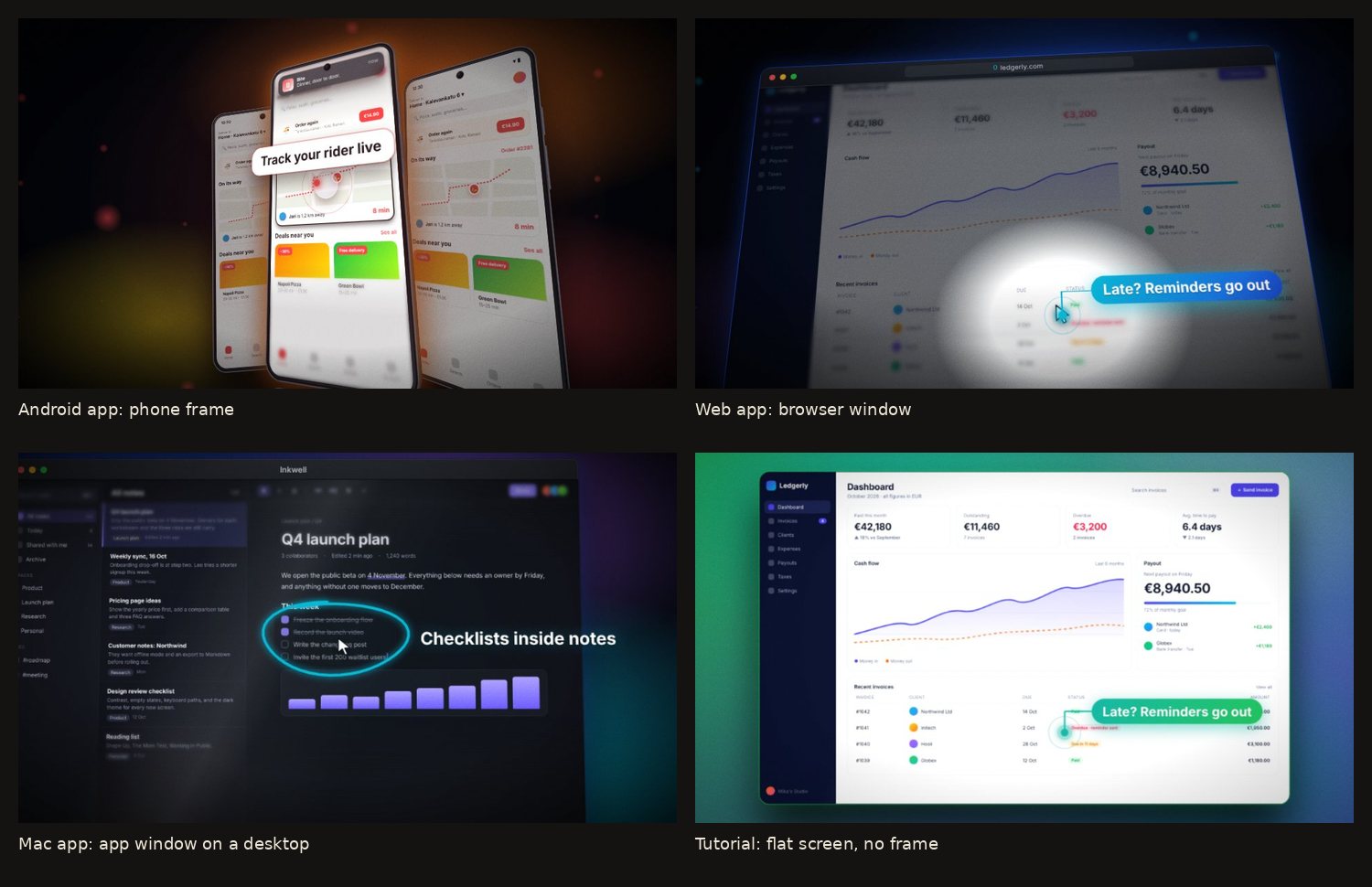
Why put your app in a frame?
A bare screenshot can be anything. A frame answers "where does this run?" before the viewer reads a word: a phone means "there's an app for that", a browser window means "nothing to install", a Windows window means "it works on my PC".
A frame also gives the camera something to move around. A flat screenshot can only zoom; a phone or a window has edges, depth and a shadow, so a slow push in or a small turn reads as a real object.
Which frame fits which product?
| Your product | Frame | Why |
|---|---|---|
| iOS or Android app | Phone | It's where users meet it. Use a portrait screenshot. |
| Tablet app | Tablet | Only if the tablet layout is the point; otherwise a phone. |
| Web app / SaaS | Browser window, or none | Shows "runs in the browser" without picking a computer brand |
| Mac app | Mac-style app window on a desktop | The window is your app's UI; no hardware needed |
| Windows app | Windows-style window with a taskbar | Tells Windows users it's for them |
| Developer tool, CLI | Terminal or editor window, or none | Developers want to read the text |
| Tutorial or walkthrough | None (flat screen, zooms) | Every pixel goes to the UI being explained |
When in doubt, use the frame that leaves the most room for the screen. A frame that shrinks your UI to unreadable text costs more than it adds.
What Apple allows for iPhone, iPad and Mac mockups
If you market an app on the App Store, Apple's Marketing Resources and Identity Guidelines set strict rules for showing Apple devices:
- Use Apple's own bezels. "Use Apple-provided product bezels in all your marketing materials," on the latest-generation devices your app supports.
- No changes. Use them "as is" without "adding reflections, shadows, highlights", "cropping, tilting, or obstructing", or "animating, flipping, or spinning the images".
- No 3D or simulations. Not permitted: "Rendering in 3D or creating any simulation of an Apple product."
- Video: "once you show an establishing shot of the entire Apple device, you may pan and zoom to focus on your app," with simple transitions such as a fade or dissolve. Don't use Multi-Touch or trackpad gestures as scene transitions.
- Real screens. Show your app "as it appears when your app is running," on the latest OS, with fictional account data.
In practice, for an iOS or Mac app: show the device straight on, pan and zoom into the screen, and skip the 3D spins, orbits and tilted phones you see in a lot of launch videos. Or leave the device out and animate the app screen on its own, which avoids the question entirely.
What Google allows for Android mockups
Google's device art generator exists to "wrap app screenshots in device artwork" for your website and promotional material. But the same page says: "Do not use graphics created here in your feature image or screenshots for your Google Play store listing, using the screenshot alone without framing is recommended."
So for Android: frames are fine on your site, in social posts and in your YouTube video; the Play Store screenshots should be unframed. The store video has its own rules, covered in our App Store and Google Play preview video guide.
How to animate a device mockup
The device is the stage; the screen is the actor. Moves that work:
- Establishing shot, then push in. Show the whole device for a second or two, then move towards the part of the screen that matters. This is also the pattern Apple allows for its devices.
- A slow turn (turntable) or orbit for generic phones and app windows, under a headline or in a launch video. Keep it under about 20 degrees so the screen stays readable.
- App window opening from the dock or taskbar for desktop apps: it says "this is a real app on your computer" without a word.
- Taps and scrolling inside a phone: finger-tap markers on buttons and a long screenshot scrolling under a still camera read like real use.
The full list of moves, with a clip of each, is in camera moves for UI videos.
Getting the screen right inside the frame
- Match the aspect ratio. A portrait phone screenshot in a phone, a 16:10 or 16:9 capture in a laptop or window. Stretching a screenshot to fit a frame is the most common mockup mistake.
- Capture at 2x. The camera will move closer than the frame suggests. A low-resolution screenshot goes soft at the first zoom.
- Hide the real status bar or make it tidy: full battery, signal, a neutral time.
- Use believable fake data. Apple's guidelines ask for fictional account information, and it's good practice everywhere.
- Dark or busy UIs need a calm backdrop, light UIs a darker one, so the frame's edge stays visible.
How to capture clean screens on Mac, Windows and in Chrome is in how to make a demo video from screenshots.
Device mockup videos in Lumora
Lumora (ours) has six frames: a 3D laptop and tablet, iPhone-style and Android phones, and Mac and Windows app windows that sit on their own desktop with a dock or taskbar. A portrait screenshot goes into a phone frame automatically, and you can switch the frame, or turn it off, in one click. If you're marketing an iOS or Mac app under Apple's guidelines, set the device to none and use a flat look such as Studio; for Android apps, web apps and desktop apps on Windows, the 3D frames and camera moves are yours to use.
FAQ
What is a device mockup video?
A video that shows your app's screen inside a device or window frame, such as a phone, a tablet, a laptop or a desktop app window, usually with some camera movement. The frame tells viewers at a glance where the product runs.
Can I use an iPhone mockup in my app's marketing video?
With limits. Apple's marketing guidelines for App Store apps ask you to use Apple-provided product bezels as is, and don't allow animating, spinning or tilting them, or rendering an Apple product in 3D. In video, you may show the whole device first, then pan and zoom to your app.
Can I use device frames in my Google Play screenshots?
Google recommends against it. Its device art generator page says not to use framed graphics in the feature graphic or screenshots of a Google Play listing; use the screenshot alone instead.
Which device frame should I use for a web app?
A browser window, or no frame at all. A laptop frame works too, but a browser window shows the product the way users will meet it, and it isn't tied to one brand of computer.
Should the mockup move in 3D?
For your own site and social video, a gentle 3D move makes a mockup feel physical. Keep it slow, keep the screen readable, and don't use 3D moves on Apple devices if you follow Apple's marketing guidelines.